
01 / The solution
Analytics your team actually uses — and the operations to act on them.
Everything below runs on top of your existing QuickBooks company file — nothing is duplicated, nothing has to be re-entered.
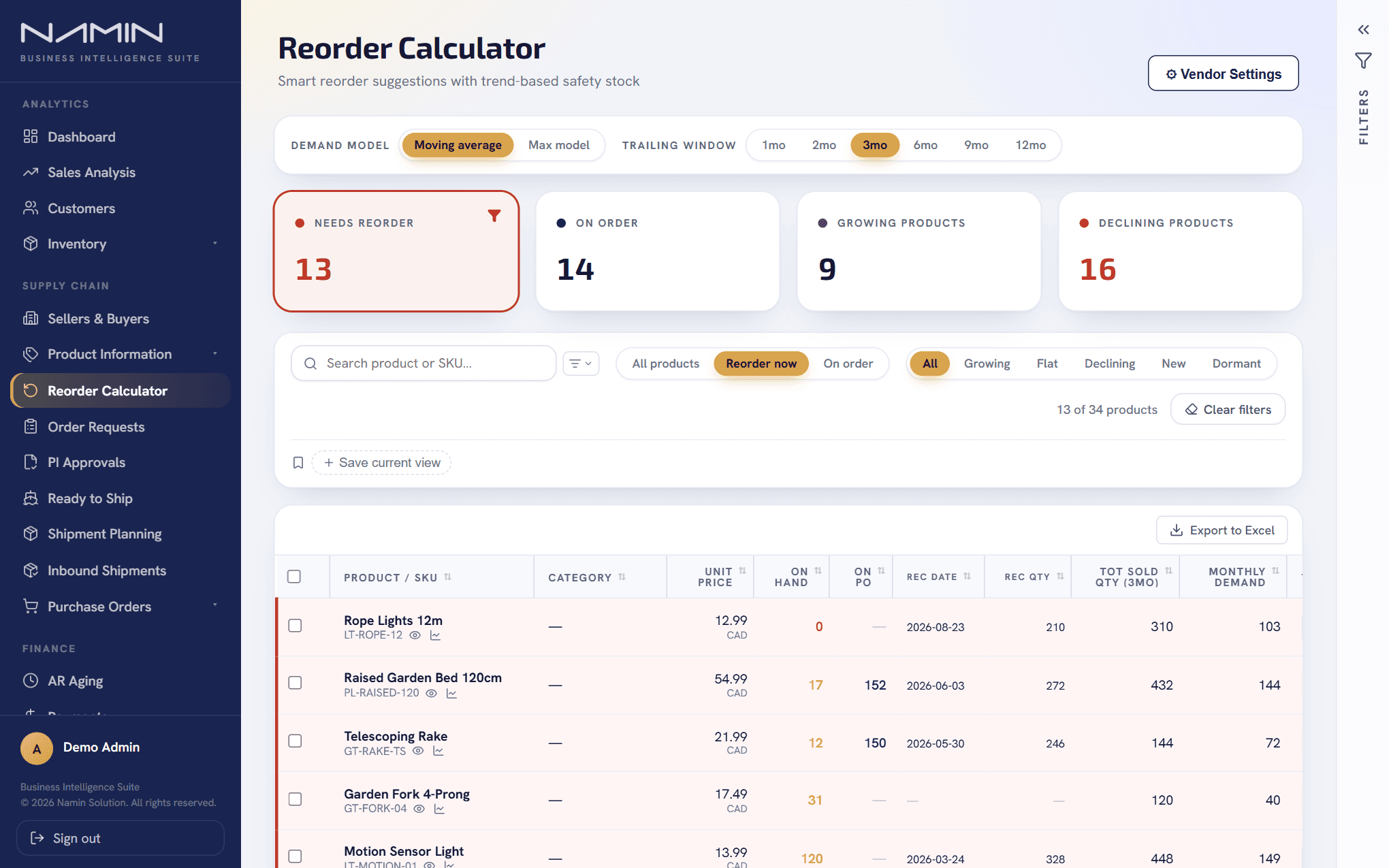
Product screenshot with demo data.
02 / Core platform — every customer gets this
Business intelligence on your QuickBooks data.
Sales, customers, receivables and stock, always current, with the filters and saved views to answer the question you actually have.
Dashboard
Revenue trends and the KPIs that matter most, pulled live from QuickBooks — the first screen everyone sees, not a report someone has to remember to run.
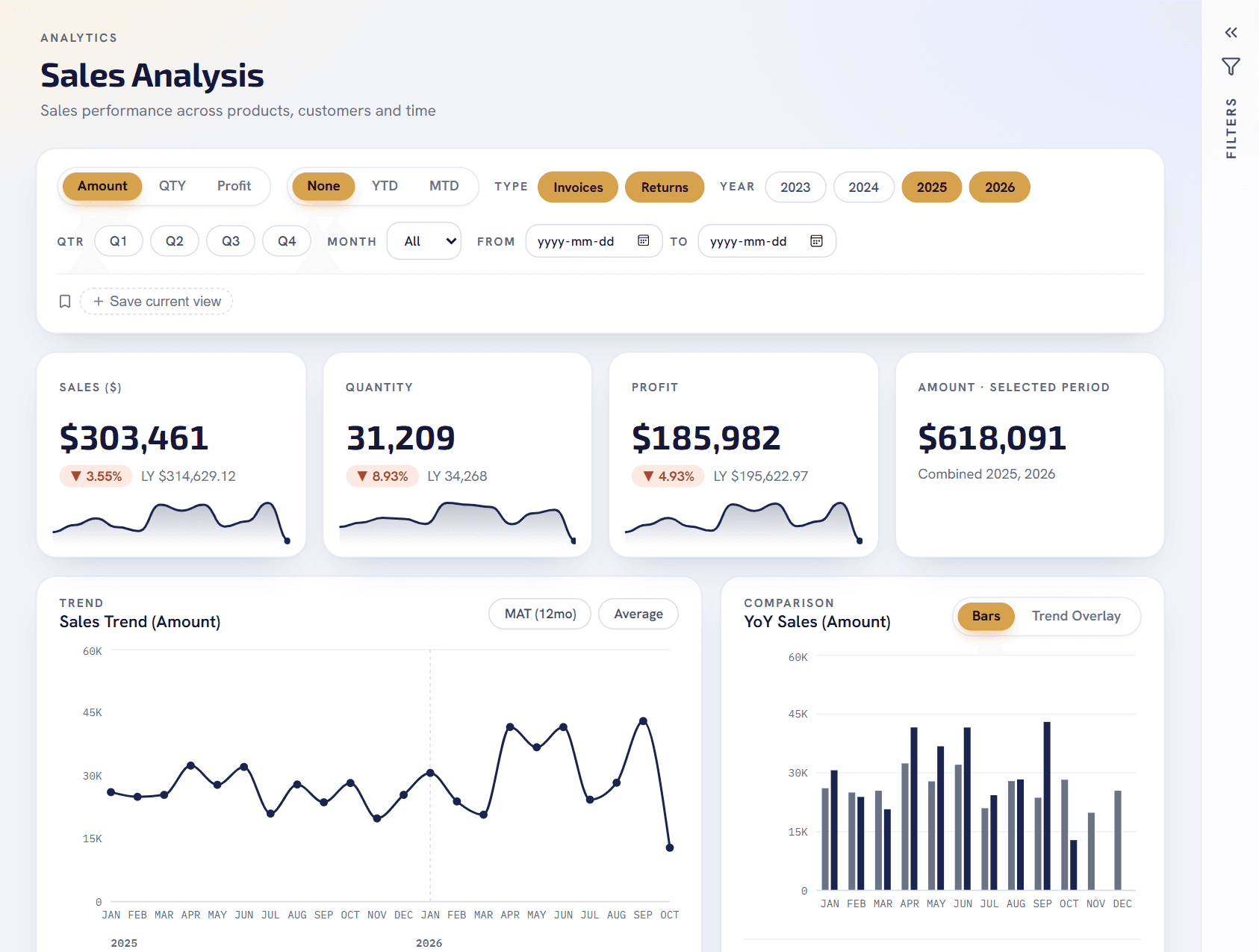
Sales Analysis
Revenue broken down by customer, product, and category, with year-over-year and trend comparisons built in. It's a page you filter and explore, not a static export someone emails around once a month.
Customer Analytics
Top customers, dormant-customer detection, and RFM segmentation (recency, frequency, monetary value), so you can see which relationships are growing, which are slipping, and where to focus before a customer is gone rather than after.
AR Aging & Payments
Accounts receivable aging buckets and a full payments view, filterable by month and year, with unpaid and unapplied amounts always visible — export to Excel with numbers and dates formatted the way a spreadsheet actually expects them, not raw QuickBooks strings.
Inventory Overview
Stock health at a glance across your whole catalog — out of stock, low stock, healthy, overstock — plus inventory value and exactly how much of what's "on order" is still in production, already shipped, or sitting on a purchase order nobody's followed up on.
Product Master, with mass updates
Manage weight, CBM, unit-of-measure conversions, category, and vendor assignment for every product in one place — including a bulk Excel round-trip for updating an entire catalog at once instead of one product at a time.
Roles, users, and row-level access
Build custom roles with per-page access, then go further with row-level security: restrict a role to only certain customer types or vendors, hide profit and cost figures from a role entirely, cap how many active users a company can have, or limit which record statuses a role is even allowed to query — a buyer role scoped to only its own requests, for example. All of it enforced on the server, so it's a real data boundary, not just a hidden button.
03 / Optional module
The operations module: reorder, approve, ship, return.
When you are ready to take purchasing, shipping and returns out of spreadsheets and email — every hand-off logged, every pending step visible.
Reorder Calculator
Every SKU gets a live suggested reorder quantity, computed from on-hand stock, what's already on an open purchase order, recent sales trend, and lead time. Lead time itself is resolved in priority order — a SKU-specific override first, then the vendor's own default, then your company's configured default — so the number on screen always reflects the most specific data you have. Need to test a different assumption? Override the lead time for one item or a whole selection and recalculate on the spot, without touching the saved settings.
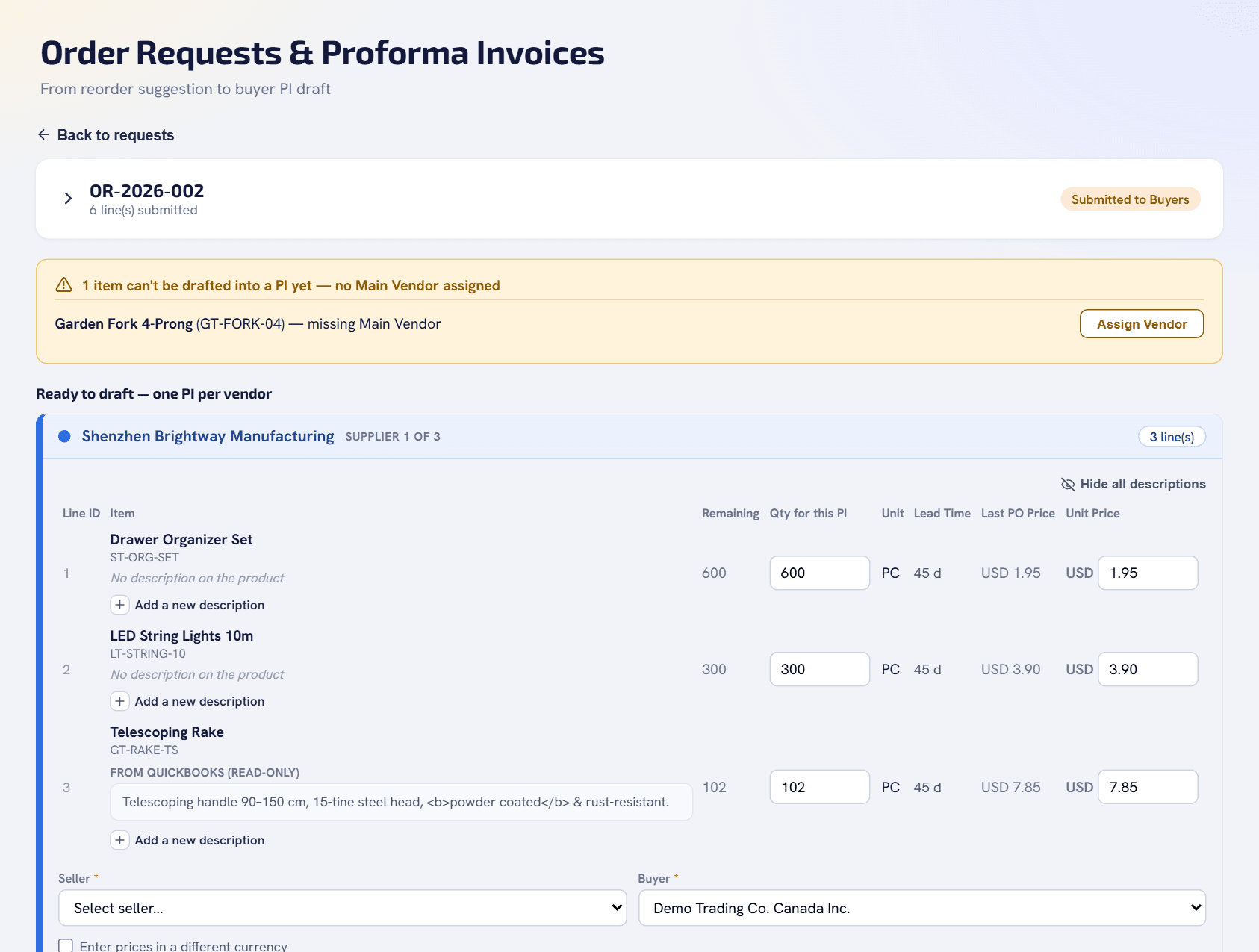
Order Requests
Suggestions become an Order Request in one click. Buyers adjust quantities in an editable grid, with every change logged. Order rules can auto-add a companion SKU whenever its paired item is ordered — so a fixture and its required driver, for example, never get separated by mistake.
Proforma Invoices, split by vendor
A request doesn't have to go to one supplier. Products can carry more than one vendor or custom supplier, with one marked Main — Namin uses that to automatically group a request's lines into one Proforma Invoice per vendor, instead of a buyer doing it by hand. Each supplier gets its own colour on screen, so a long request stays easy to read.
Product descriptions that follow the order
A buyer sees each product's QuickBooks purchasing description, read-only, and can add a new description when the spec has changed. The manager sees which lines carry a changed description before approving, and the description appears under the item on the Proforma Invoice document — the buyer's new text where there is one, otherwise the QuickBooks text.
One clear approval step
Every PI goes through a single, explicit approval before anything is sent to QuickBooks — who approved it and when is always on record. A rejected PI stays visible to whoever needs to see it, with the reason attached, not lost in an inbox.
A real QuickBooks Purchase Order — automatically
Approving a PI creates a genuine Purchase Order in QuickBooks through the official API, with the PI number and vendor written into QuickBooks' own custom fields for every company's account. QuickBooks stays the single source of truth for the PO itself; Namin just gets you there without retyping anything.
Production, shipping, and receiving
Track a PO through production status, issue commercial invoices against it, log packing lists and shipment details (BL/tracking number, carrier, ETA), and follow it through to receiving — all inside the same record the reorder suggestion started from.
Returns (RMA) through to a credit memo
A return starts as an RMA for your customer: pick the customer, add the items (priced from that customer's last invoice) and submit it for a permanent RMA number. The warehouse then records what actually came back — received, sellable and defective quantities, and what you approve for credit. Email the RMA to your customer (to several people, with CC), then create the matching credit memo in QuickBooks from the approved quantities. Items that came back defective can be logged with the reason and what they cost you.
Product data QuickBooks doesn’t track
Net weight, CBM, and a piece-to-box-to-carton unit-of-measure ladder per item, layered on top of your QuickBooks item sync as local overrides — nothing is lost the next time QuickBooks resyncs. Discontinued items can be linked to their replacement, so reorder planning and demand history carry forward instead of resetting to zero.
Next step
Want to see it on your own data?
Try it free for 14 days on your own QuickBooks data, or ask for a 30-minute walkthrough — no commitment.